

| Previous | Home | Next |
This is a cool blue button tutorial, I have explain all the step of the technique to make this effect, you can also make this button by taking help of the tutorial.
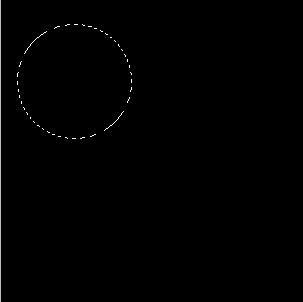
Step 1: Take a black background and draw a circle selection by the Elliptical marquee tool (M key) as given here.
Step 2: Take a new layer and fill blue color in the selection by the Paint bucket tool (G key).

Step 3: Select light blue foreground color and apply on the blue circle by the brush tool as given here.


Step 4: Select Custom shape tool (U key) and choose "Circle Frame" then draw on the blue circle as given here.


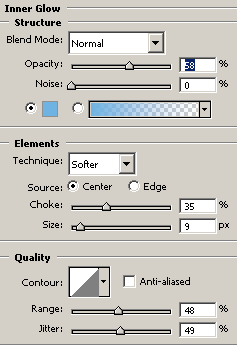
Step 5: Give Inner glow effect, go to layer menu -> layer style -> Inner glow and make settings.
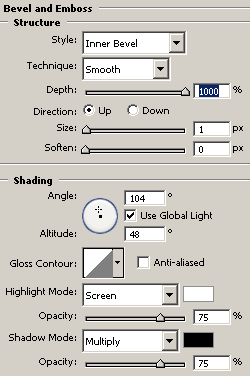
Step 6: Give bevel and emboss effect, go to layer menu -> layer style -> Bevel and emboss and make settings.
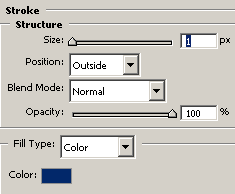
Step 7: Now give stroke effect, go to layer menu -> layer style -> Stroke and make settings.
The button will look like this.

Step 8: Make duplicate layer and set them as here.
Final Result

| Previous | Home | Next |